
WordPlayLeague for Slack
Private-access app for Slack for tracking daily word puzzle scores across weekly competitions, season standings, and historical leaderboards.
WordPlayLeague helps teams run daily puzzle leagues directly inside Slack. Players post their results in a channel, and the app automatically records scores, updates leaderboards, and tracks weekly and season performance.
What to Expect
Once installed, WordPlayLeague provides several features directly inside Slack:
Score Submission
Players post their daily puzzle results in the league channel and the app automatically records their score.
Automated Score Tracking
All submitted scores are tracked and displayed on the public league page with weekly, season, and historical standings.
AI League Updates
The app posts automated league summaries and updates on Sundays and Mondays based on collected league scores.
Note: AI-generated league summaries and updates may occasionally contain inaccuracies. These messages are generated using artificial intelligence and are intended for entertainment
purposes.
Triggered Responses
Optional automated messages can respond to score submissions or other league events.
Slash Commands
Users can run commands inside Slack to view scores, standings, streaks, and league statistics.
How WordPlayLeague Works in Slack
Once connected, WordPlayLeague interacts with your Slack workspace in several ways:
Automated League Updates
WordPlayLeague posts weekly and seasonal summary updates based on collected scores.
Slash Commands
Users can request league data directly in Slack using commands such as:
/wordplay score – Posts the weekly scoreboard
/wordplay standings – Displays season standings
/wordplay streak – Shows player streaks
/wordplay stats – Displays league statistics
/wordplay help – Lists available commands
League Statistics
Full league standings and historical performance are available on the public league page linked in Slack updates.
Posting Scores in Slack
Players submit their puzzle results by posting their Wordle-style score in the league channel.
WordPlayLeague automatically detects and records scores in the background without posting a message for every submission. This keeps the Slack channel free of unnecessary bot messages.
Once recorded, scores immediately update the league standings.
Players can view the updated results at any time by:
-
visiting the league’s public league page, or
-
running the command:
/wordplay score
This command posts the current weekly scoreboard image and includes a link to the league’s public standings page.
Installing the Slack App
The Add to Slack button appears during league setup inside the WordPlayLeague dashboard.
To install the Slack app:
-
Create or sign in to your WordPlayLeague account
-
Create a new Slack-type league
-
Click Connect Channel during league setup
-
Click Add to Slack to authorize the integration
Detailed installation steps are provided below.
How Installation Works
Installation begins after creating a WordPlayLeague account and starting a Slack league.
1. Create or Sign In to Your Account
-
Log in or register for a WordPlayLeague account.
2. Create a New League
-
Click Create League
Three league types are available:
-
SMS
-
Slack
-
Discord
Select Slack.
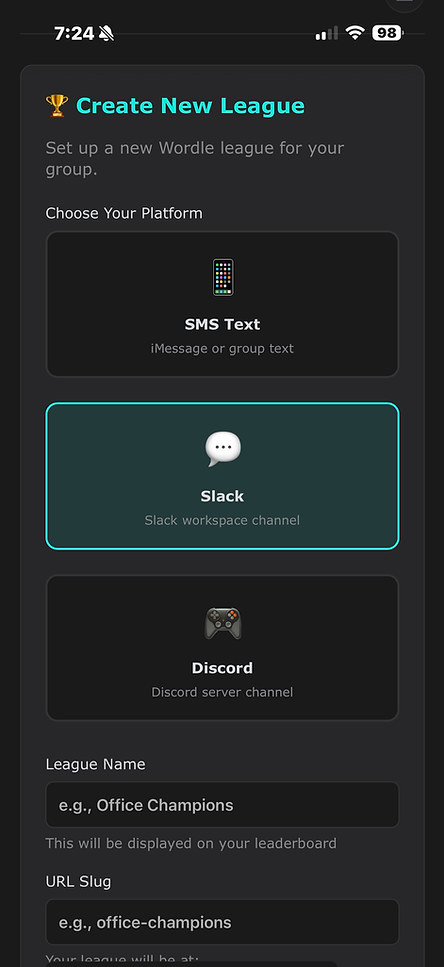
3. Choose a League Name
Enter a league name such as:
Sales Masters
Work from Homers
This name will appear at the top of your public league page and can be edited later.
4. Create the League
Click, 'Create League' and it will take you to this page, indicating, "Setup Required" and
to "Connect Channel"

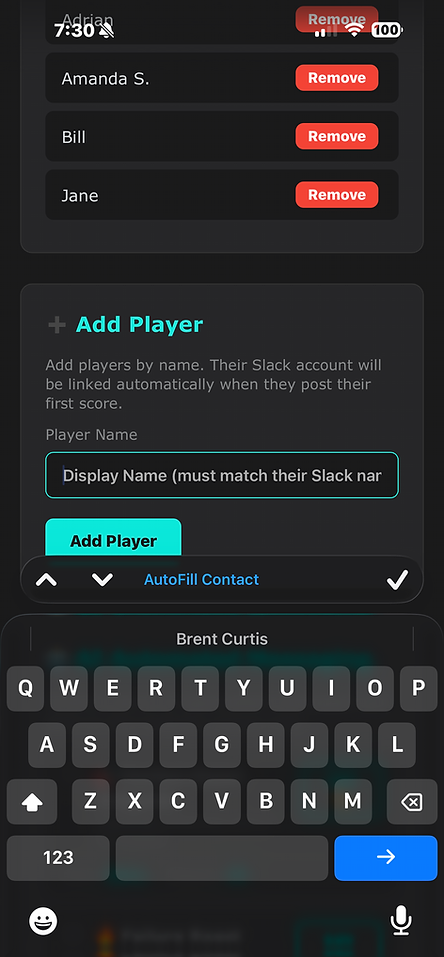
5. Add Players
Add the Slack usernames of players participating in the league.
Usernames must match exactly with the names used in the Slack channel so the system can correctly identify score submissions.
Players can be added or updated at any time.
6. View Your Public League Page
At any time you can click the link at the top of the dashboard to view your public league page, which shows:
-
League name
-
Registered players
-
Score tracking tabs and standings

7. Connect Slack
Click the Connect Channel button.
Instructions are also displayed on the league dashboard for reference.

8. Authorize the Slack Integration
Click Add to Slack.
During this step you will also receive a pass phrase, which is used to securely connect your Slack channel with your WordPlayLeague league.
If needed, you can regenerate a new pass phrase at any time from the Connect Channel setup window.

9. Approve Permissions
Slack will display a permissions screen.
Click Allow to authorize the WordPlayLeague app for your workspace.


10. Invite the Bot to Your Channel
In the Slack channel where your league will operate, run:
/invite @WordPlayLeague
This invites the bot into the channel so it can monitor score submissions.

11. Connect the Channel
In the Slack channel, type the pass phrase provided during setup.
This connects the Slack channel to your league.

12. Connection Confirmation
If successful, WordPlayLeague will send a confirmation message such as:
“Success! This channel is now connected to [League Name]. Players can start posting their puzzle scores.”
The message will also include a link to the public league page.
13. Test the Integration
To test the system, simply post a puzzle score in the channel.
The app will automatically detect the score and update:
You can also test the Slack integration by running:
/wordplay help
-
Latest Scores
-
Weekly standings
-
Season standings
-
Historical records

14. Verify Status
You can also return to the Connect Channel page and click Check Status.
Once active, your league status will change from Inactive to Active.

Support
For installation help or questions contact:
wordplayleague@gmail.com
Privacy Policy:
https://www.wordplayleague.com/privacy-policy
Terms of Service: